> ## Documentation Index
> Fetch the complete documentation index at: https://docs-next.gallabox.com/llms.txt
> Use this file to discover all available pages before exploring further.
# Kylas
> Connect Kylas CRM with Gallabox seamlessly with Elevate Plan or above. Access Kylas CRM from Gallabox, install WhatsApp Business Messaging, and follow integration steps.
Before integrating Kylas CRM, make sure you are on **Elevate Plan** or above. If not, [click here](https://kylas.io/pricing).
### Prerequisites for the Integration
1. **Permissions** - Any user with access to the Kylas account API key. (a) Contact - Read, Message (b) Lead - Read, Message
2. **Product Plans** - Elevate
3. **Activities to be completed** - Install the WhatsApp Business messaging.
Let's see how to connect your Kylas CRM with Gallabox next.
### Access your Kylas CRM from your Gallabox Account
1. Click on the Integrations in the left navigation Pane of Gallabox.
2. Hover over the **Kylas Application** available under the Integrations in Gallabox and click on **Connect** Button. You will be redirected to the Kylas Marketplace and then procced with downloading the application - **WhatsApp Business Messaging.**
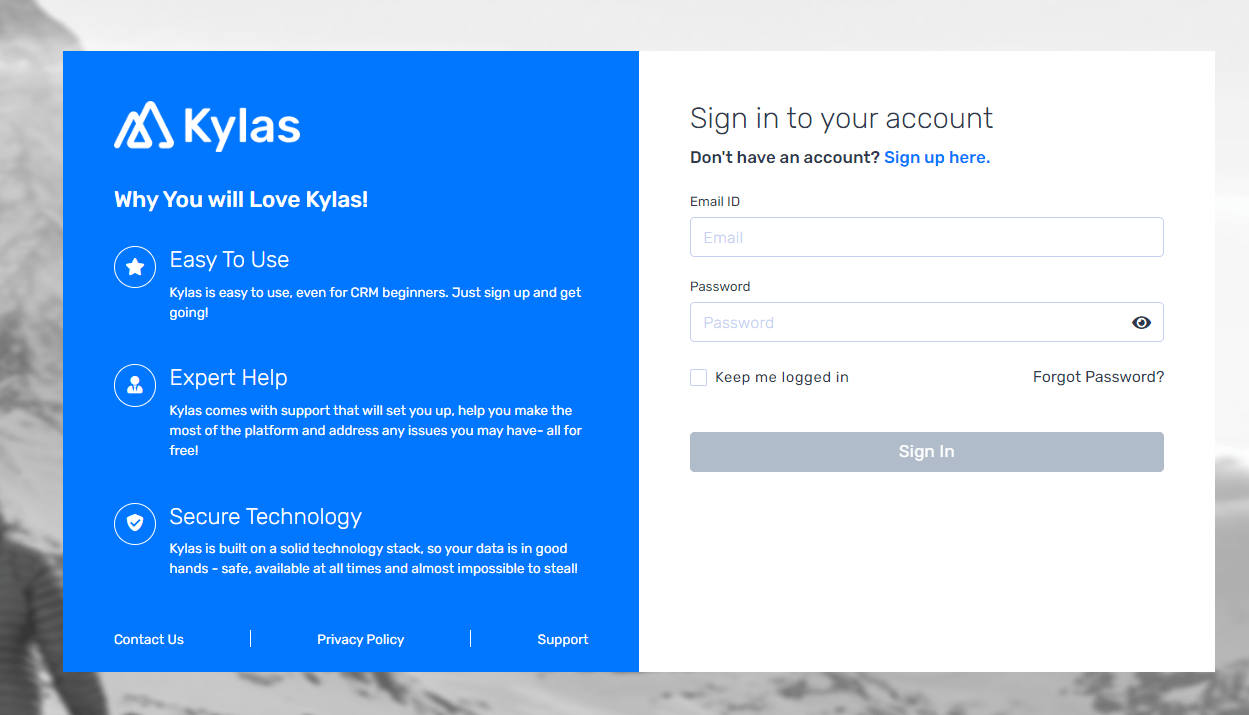
If you are redirected to the sign-in page of Kylas CRM like the screenshot below, sign - in and then go to the Kylas Marketplace.
 For more steps, click [here](https://support.kylas.io/portal/en/kb/articles/how-to-connect-gallabox-whatsapp-account-with-kylas).