> ## Documentation Index
> Fetch the complete documentation index at: https://docs-next.gallabox.com/llms.txt
> Use this file to discover all available pages before exploring further.
# Workflows for Calendly
> Set up Calendly notifications easily with Gallabox. Choose events from Calendly, select reminder timing, and personalize WhatsApp templates for each customer. Streamline your communication process.
### Event Confirmation Notifications
This workflow can be used to send Event confirmations once someone has booked a meeting with you.
If you prefer watching the video, here it is:
If you prefer the guide to configure this workflow follow the below steps:
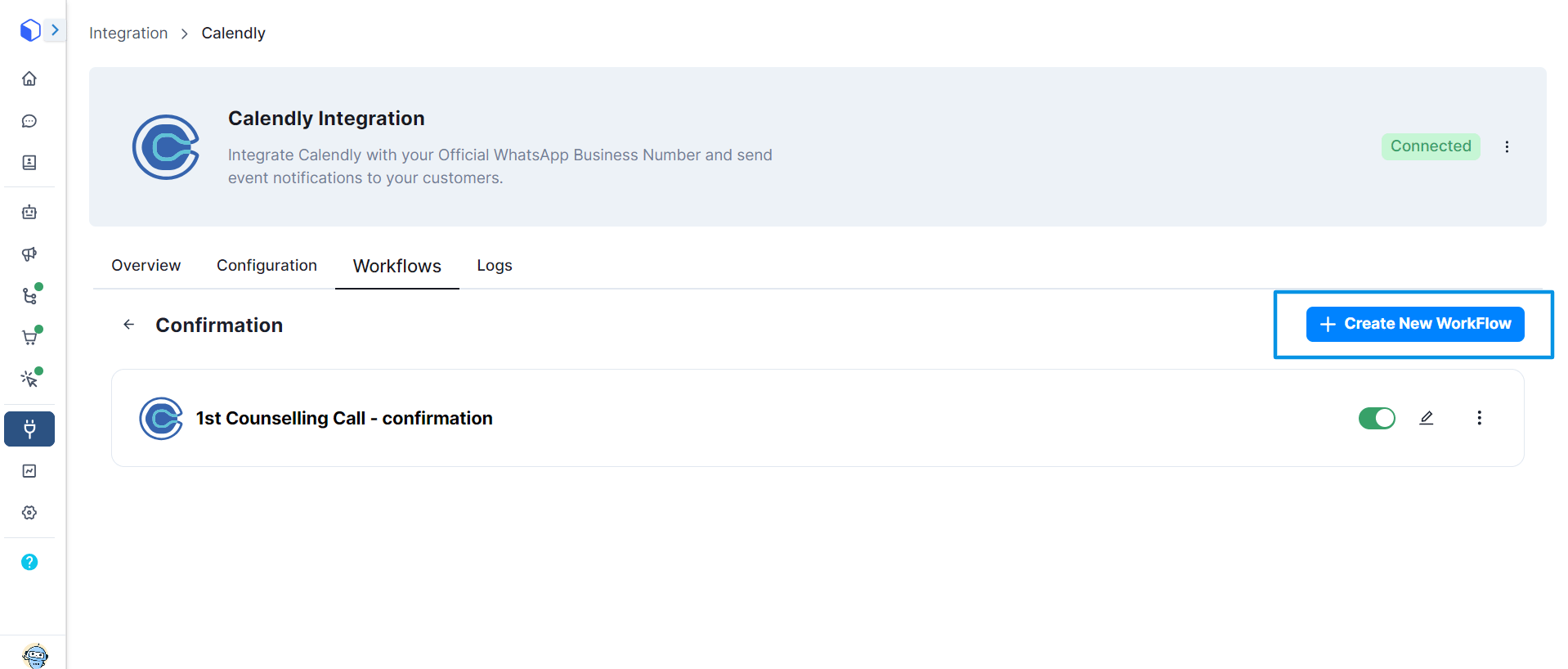
1. Click on **+Add Workflow** for Event Confirmation Notifications. You will be directed to Event Confirmation Notification window.
2. You have to choose the Event (from the drop-down) for which you would like to send the Event Confirmation Notifications.
All the events that you have created in your Calendly Account will appear in the drop-down.
3. Pick the desired confirmation template you would like to share with your customers. Map the right variables like Recipient's Phone Number, Recipient's Name, Event Link and more to personalize your message for each of your customers.
4. Choose the Action you would like to perform in Gallabox like updating contact number, or sending a sequence of messages or sending targeted broadcast messages.
If you would like to run a Sequence of messages or send targeted broadcast messages, you have to update the Contact Tags.
5. Once you are done selecting the event, adding the Template, and updating the Action field click on **Create Workflow**.
6. Similarly you can create the more Event Confirmation Notifications for all the events you have created in Calendly.
### Event Reminder Notifications
This workflow can be used to send Event reminders before the start of a meeting.
If you prefer watching the video, here it is:
To configure this workflow follow the below steps:
1. Click on **+Add Workflow** for Event Reminder Notifications. You will be directed to Event Reminder's Notification window.
2. You have to choose the Event (from the drop-down) for which you would like to send the Event Reminder Notifications.
All the events that you have created in your Calendly Account having will appear in the drop-down.
3. Select the duration before the event time you would like to send reminders.
4. Select the desired WhatsApp template you would like to share with your customers. Map the right variables (if you want to personalize the WhatsApp Message for each one of your customers).
5. Once you are done selecting the event, adding the Template, and updating the Action field click on **Create Workflow**. Similarly you can create the more Event Confirmation Notifications for all the events you have created in Calendly.
### Event Follow-up Notifications.
The above steps has to be followed for ***Event follow-up Notifications*** as well. Here is the video guide:
### Calendly Logs
To check if your workflows are working smoothly, you can go to Logs in Calendly Integrated Application.
 ### Event Reminder Notifications
This workflow can be used to send Event reminders before the start of a meeting.
If you prefer watching the video, here it is:
To configure this workflow follow the below steps:
1. Click on **+Add Workflow** for Event Reminder Notifications. You will be directed to Event Reminder's Notification window.
2. You have to choose the Event (from the drop-down) for which you would like to send the Event Reminder Notifications.
### Event Reminder Notifications
This workflow can be used to send Event reminders before the start of a meeting.
If you prefer watching the video, here it is:
To configure this workflow follow the below steps:
1. Click on **+Add Workflow** for Event Reminder Notifications. You will be directed to Event Reminder's Notification window.
2. You have to choose the Event (from the drop-down) for which you would like to send the Event Reminder Notifications.