> ## Documentation Index
> Fetch the complete documentation index at: https://docs-next.gallabox.com/llms.txt
> Use this file to discover all available pages before exploring further.
# Shipway
> Connect Shipway One with Shipway Experience seamlessly by following these steps on Shipway One Dashboard. Integrate Shipway Experience with your Shipway One Account for a smooth experience.
### **Connect Shipway One with Shipway Experience**
1. Login in to Shipway One Dashboard ([https://shipway.com/](https://shipway.com/)) and click on Setting on the top right side of the dashboard.
2. Under Integrations, click on 3rd party Integrations. Click on **+Add New third Party.**
3. From the options, click on Shipway Experience and paste **UserName** and **Licence Key** from your Shipway Experience dashboard. Click on Save Settings and Shipway Experience will be connected with your Shipway One Account.
### **Connect the Integration**
1. From the left navigation go to **Integration** and Click on **Shipway** from the available apps.
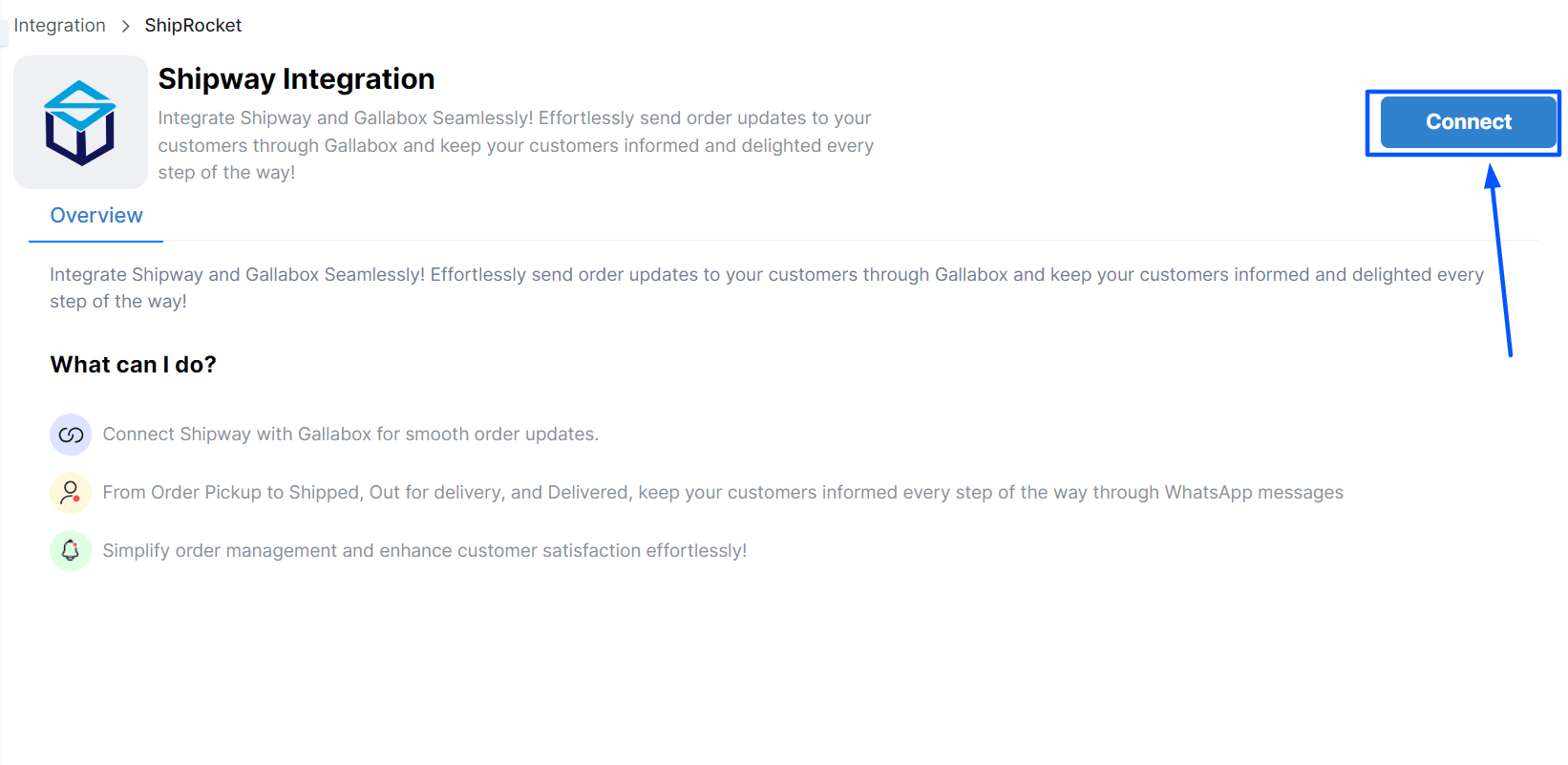
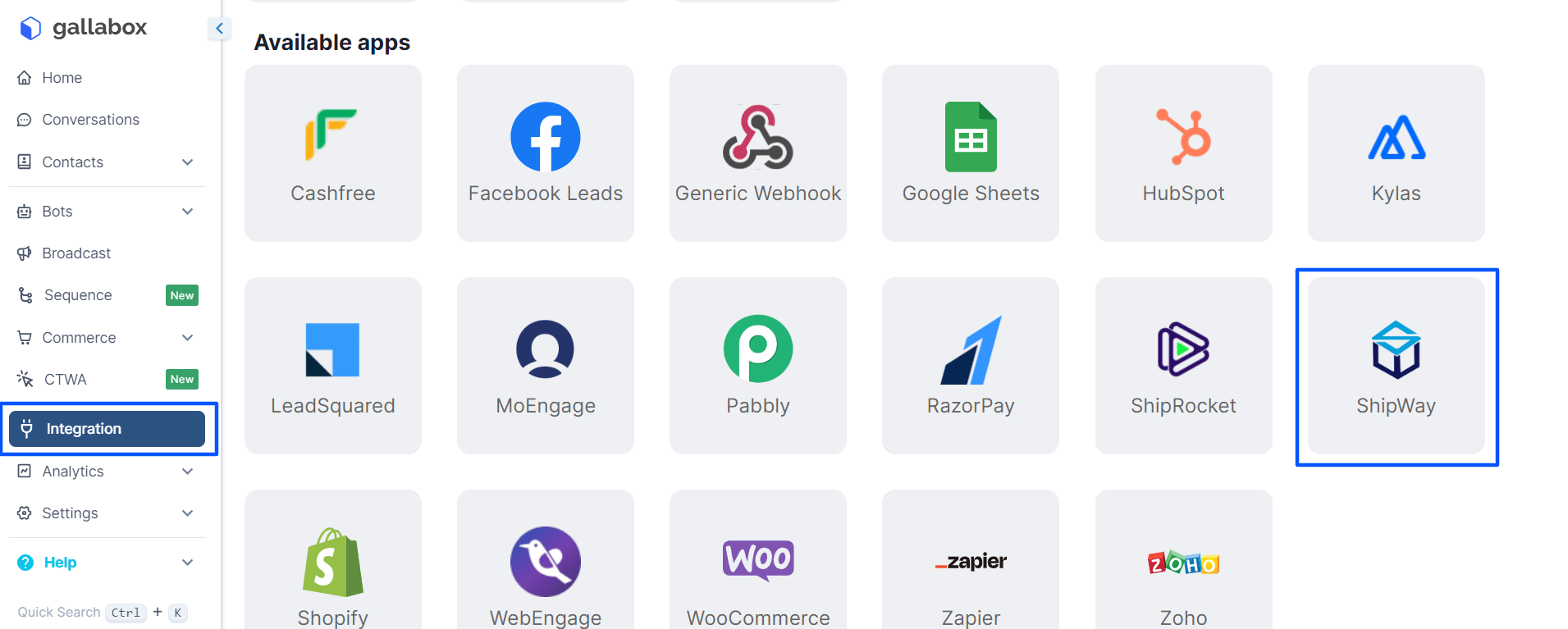 2. After clicking on the Shipway Integration app, click on **Connect**.
 3. Enter the Integration Name, Username, and Password to connect the Integration. The username has to be taken from your Shipway account. In place of Password, you have to enter the **License Key** available on the shipway account. Go to [https://dashboard.shipway.in/BS](https://dashboard.shipway.in/BS) to get the Username and License Key.
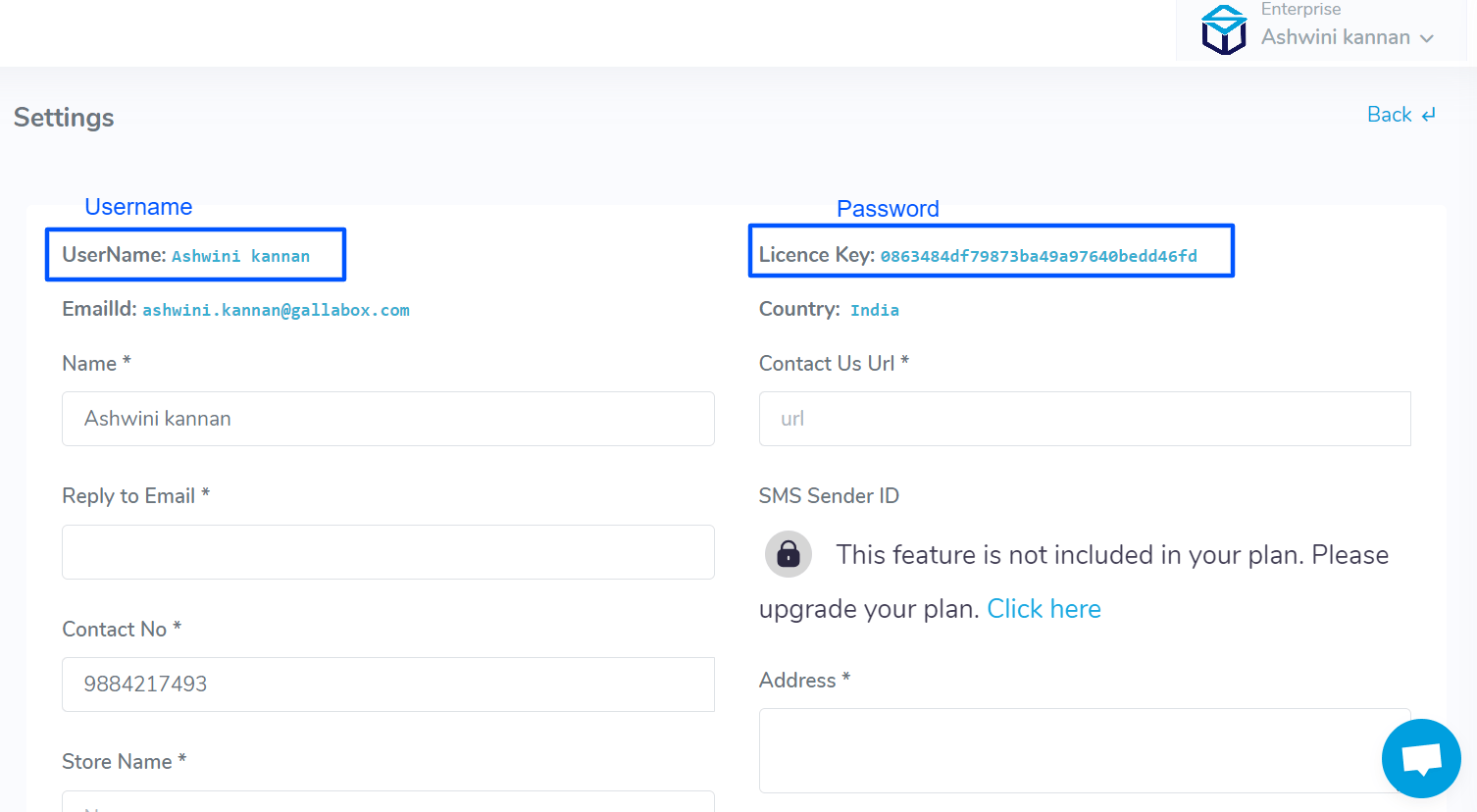 4. Once you have entered the username and License Key in place of username and Password in Gallabox, click on Connect and you will land on the configuration page.
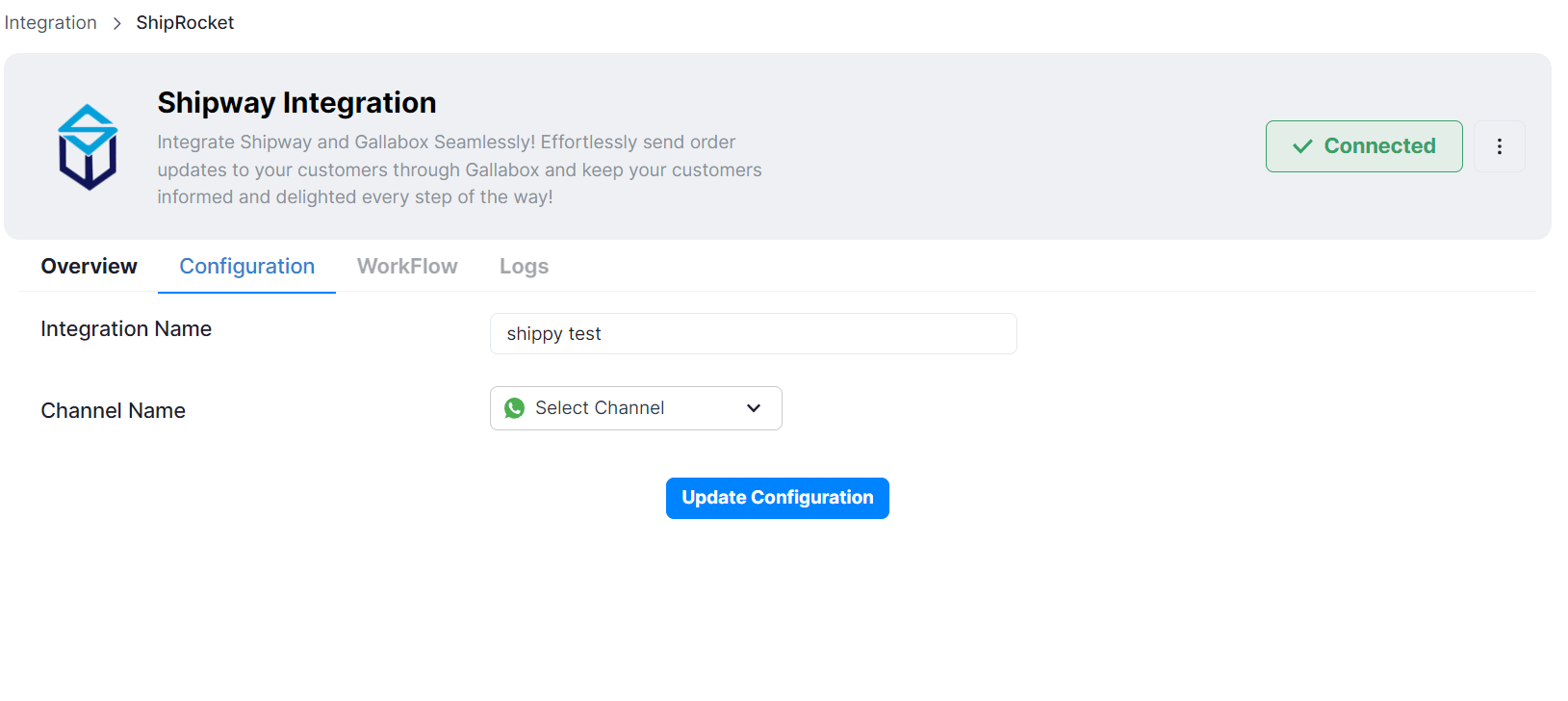 ### **Configuring the Integration**
1. Select the Channel (WhatsApp number) you would like to use with the Shipway Integration to send the messages to your customers.
### **Configuring the Integration**
1. Select the Channel (WhatsApp number) you would like to use with the Shipway Integration to send the messages to your customers.
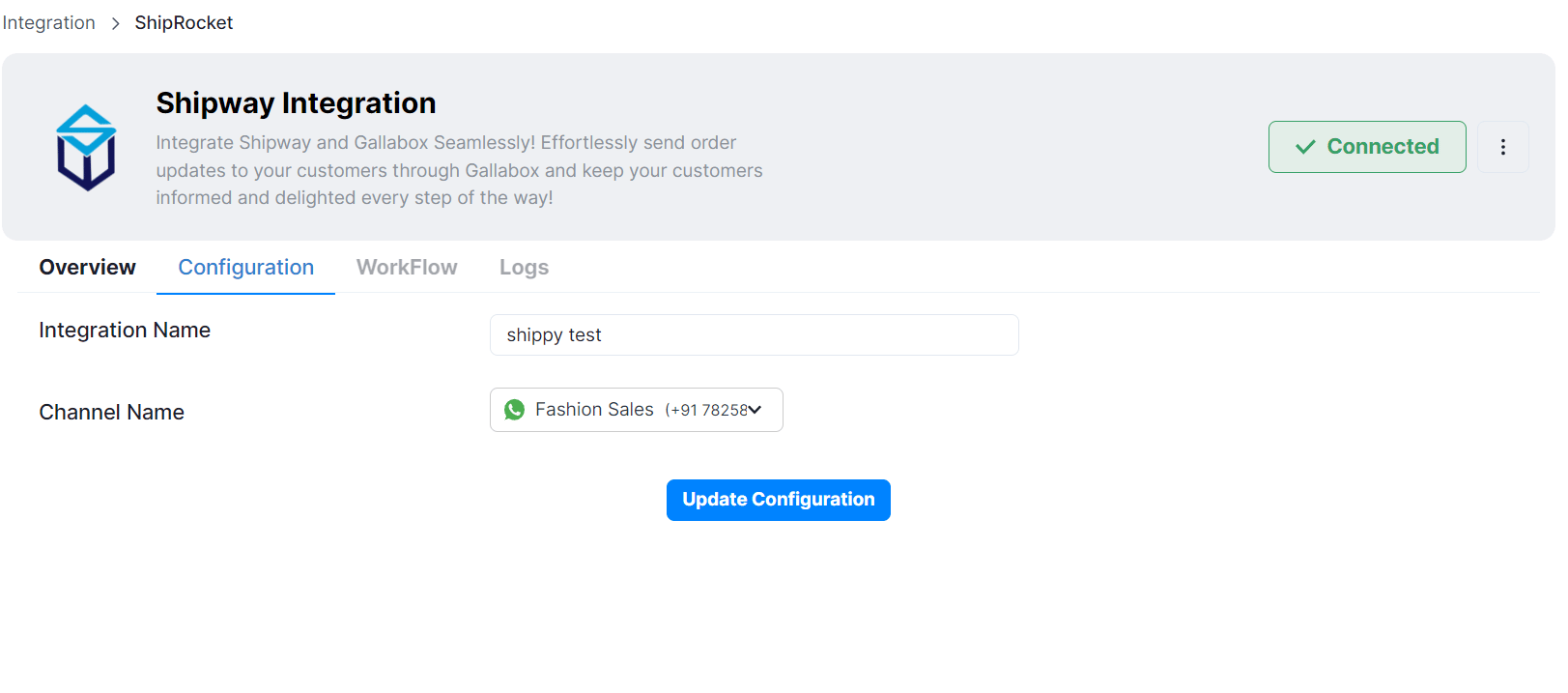 2. After selecting the channel, click on update configuration.