> ## Documentation Index
> Fetch the complete documentation index at: https://docs-next.gallabox.com/llms.txt
> Use this file to discover all available pages before exploring further.
# Workflows for Shipway
> Maximize efficiency with our Shopify Notifications guide. Learn to easily select templates and set up delivery workflows for streamlined communication.
### Order Delivered Notifications
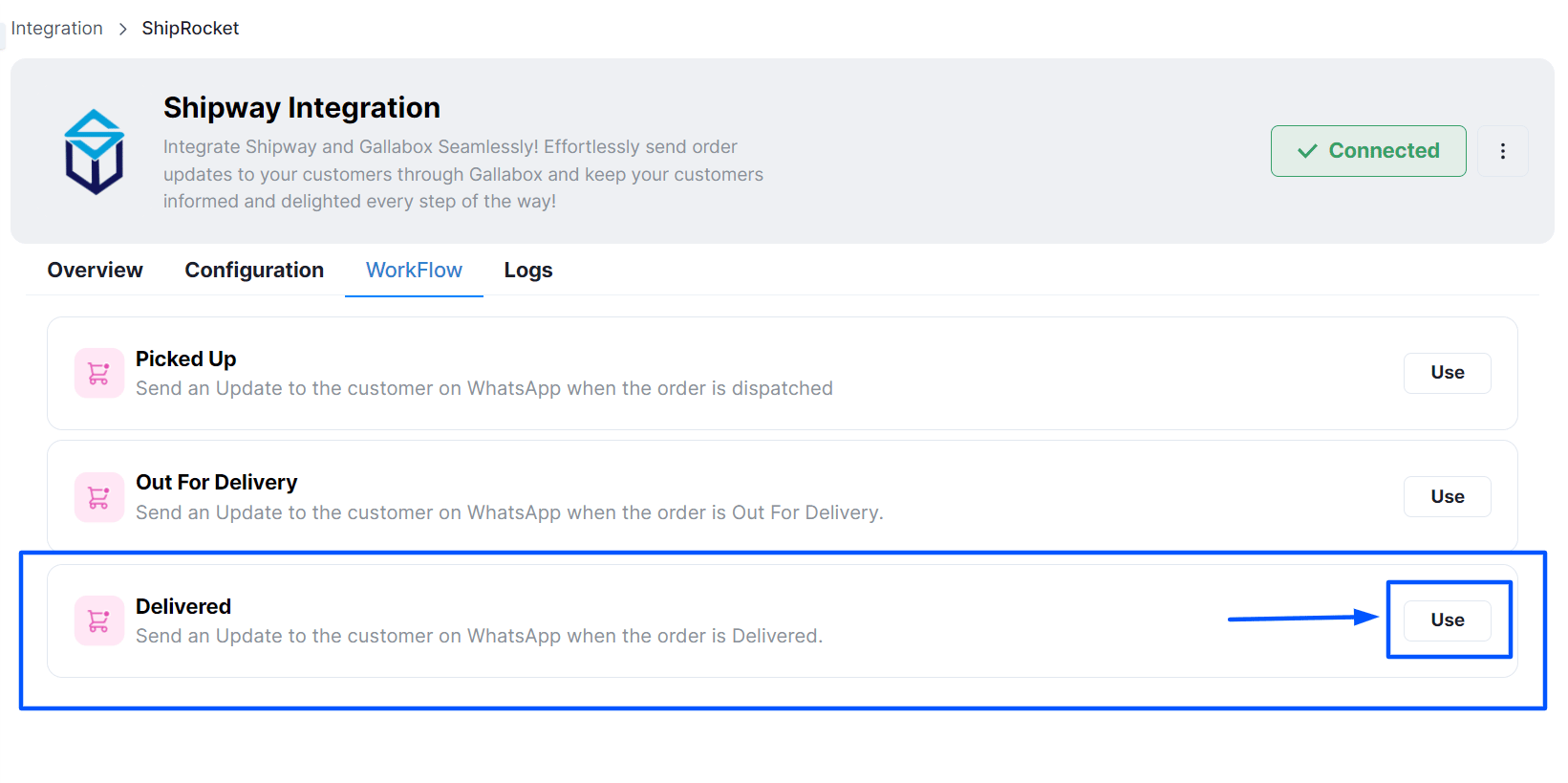
1. Click on Use beside the Order Delivered Workflow.
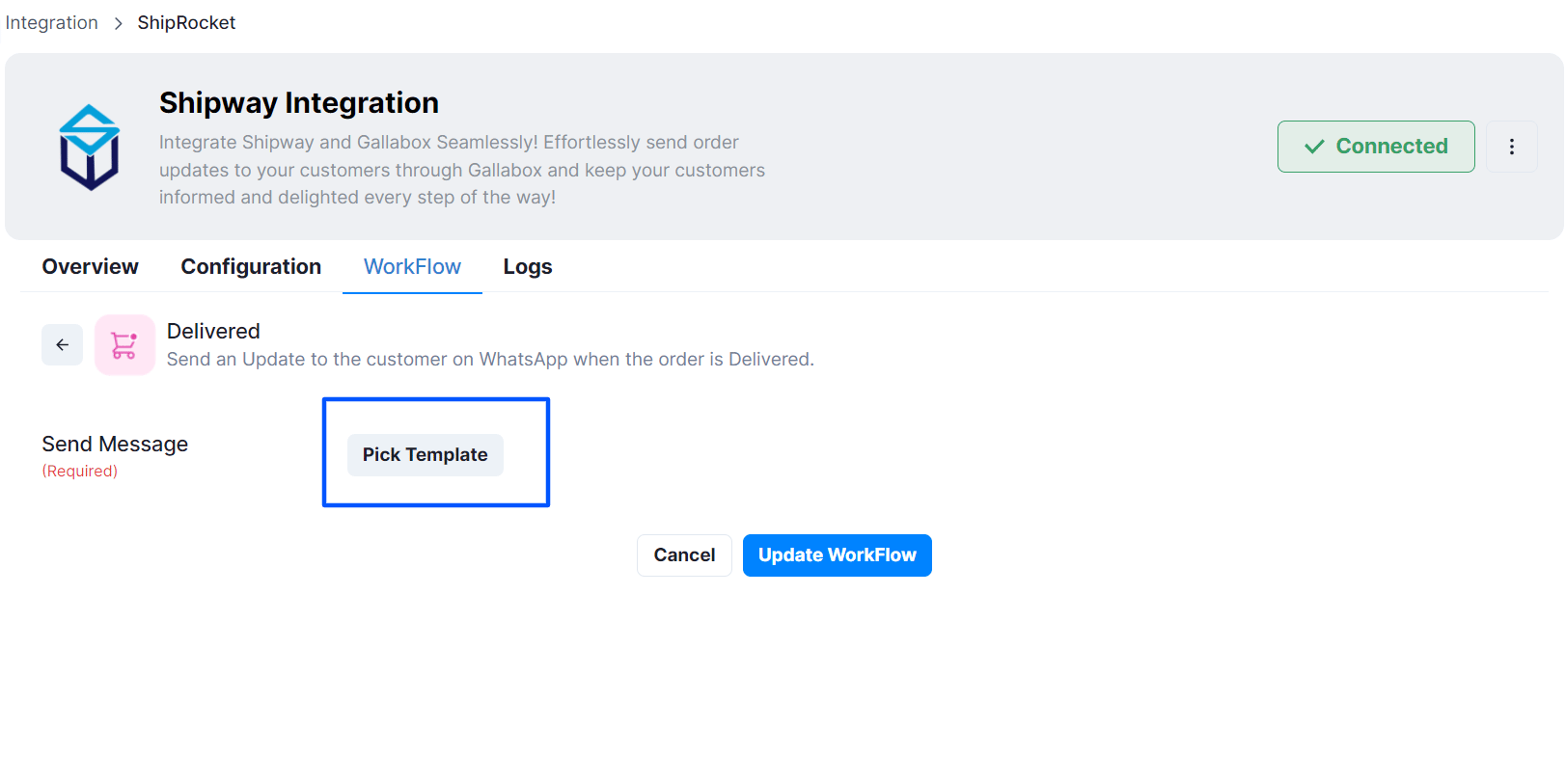
 2. Click on **Pick Template** to open the template library for you to select the template.
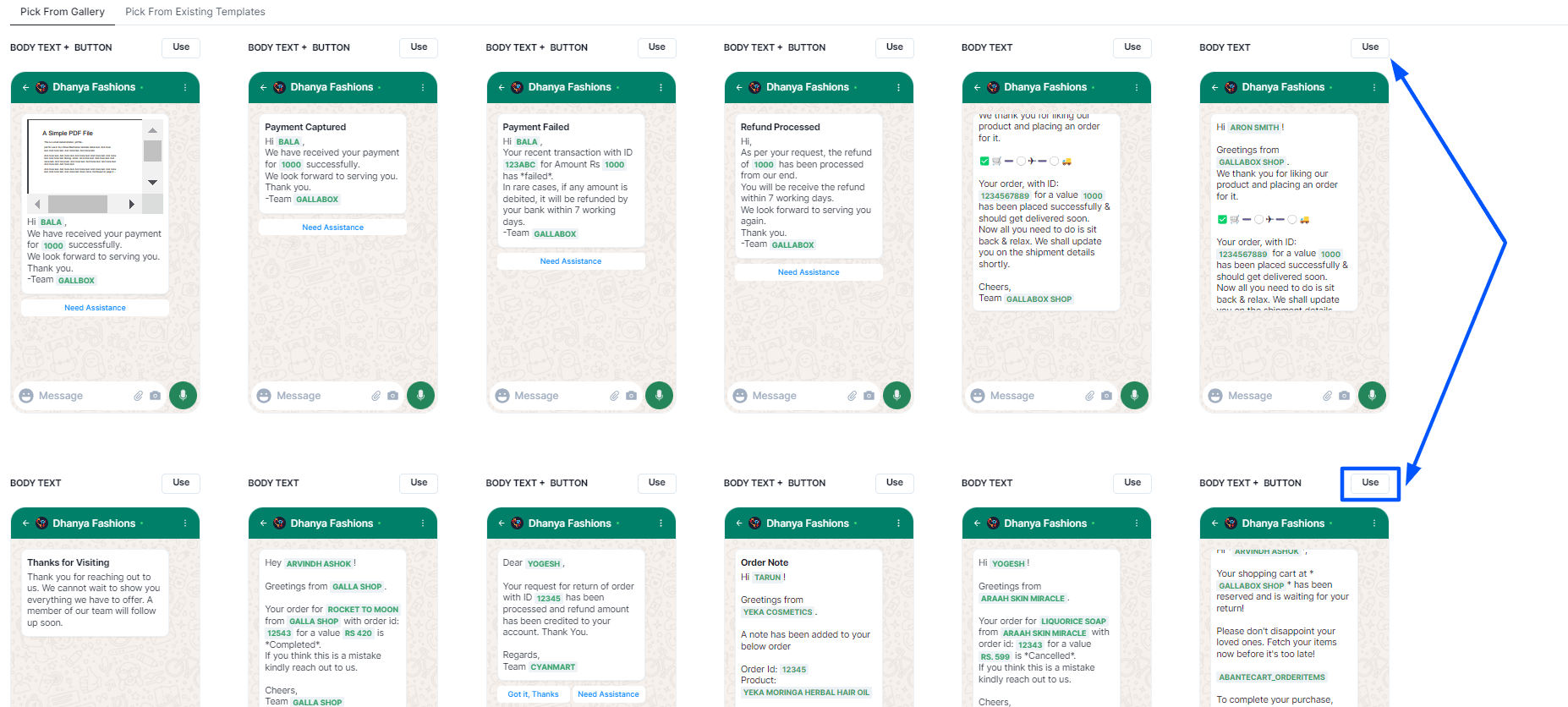
 3. To choose the Template you would like to share with the customers when their order has been delivered click **Use** above the chosen template as shown in the picture below.
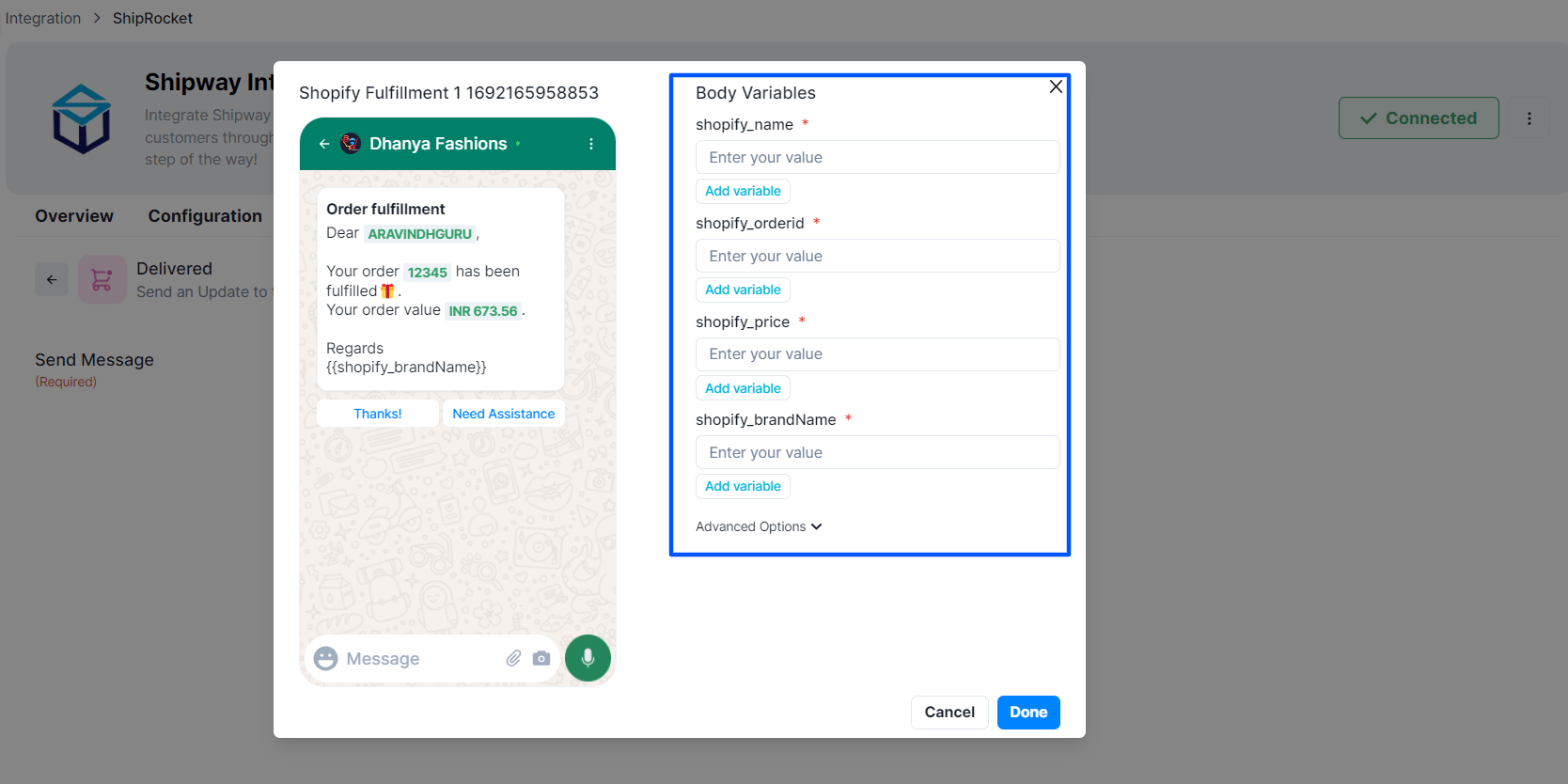
 4. Once you have selected the template, the next step is to map the variables in the templates and click on **Done**.
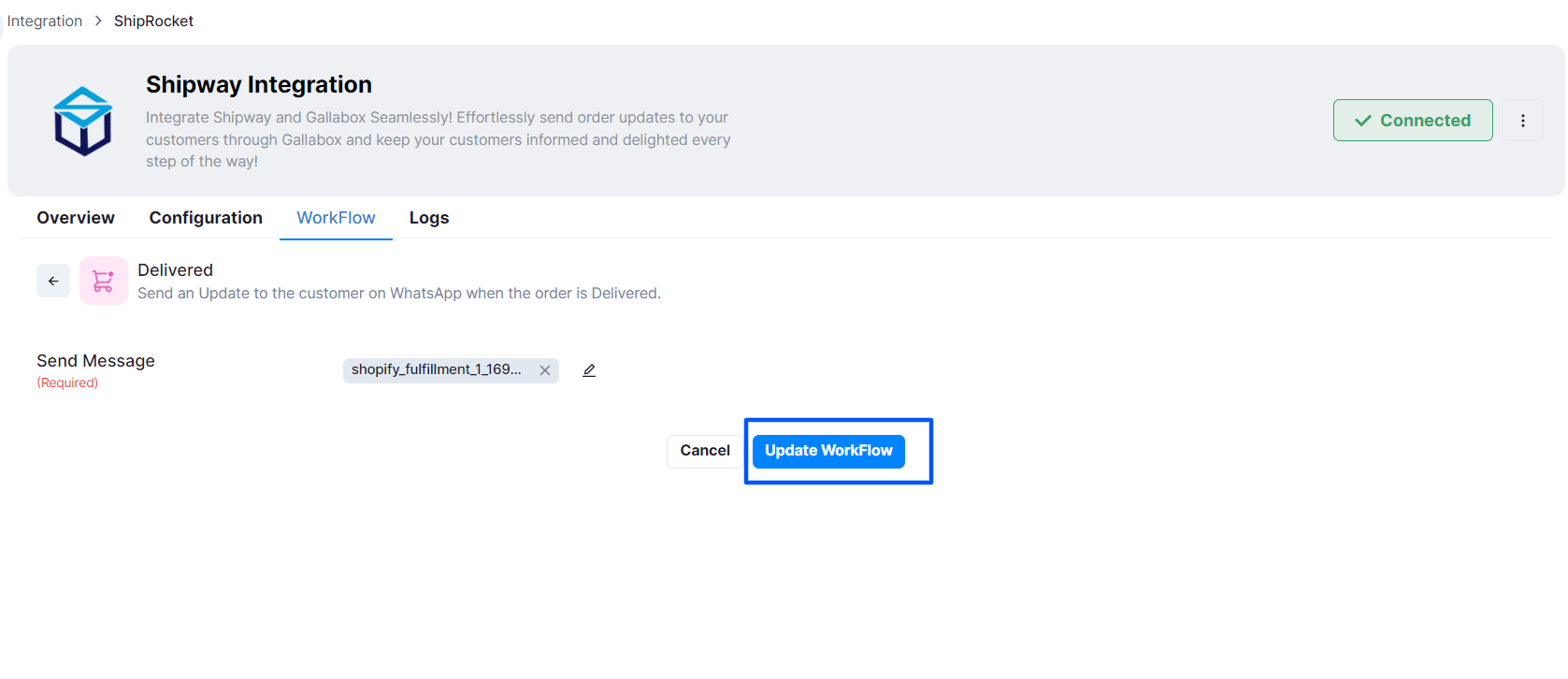
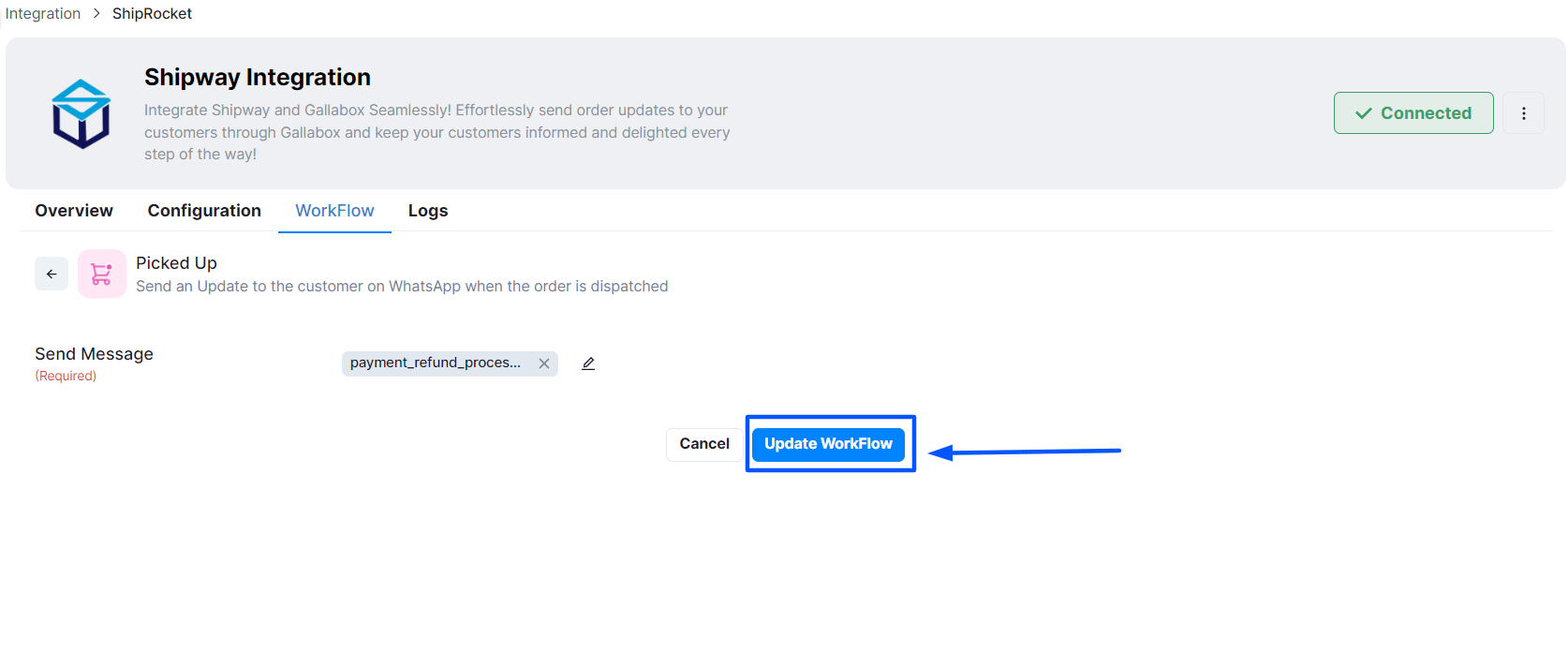
 5. Click on update workflow as the last step.
 ### Order Pickup Alerts
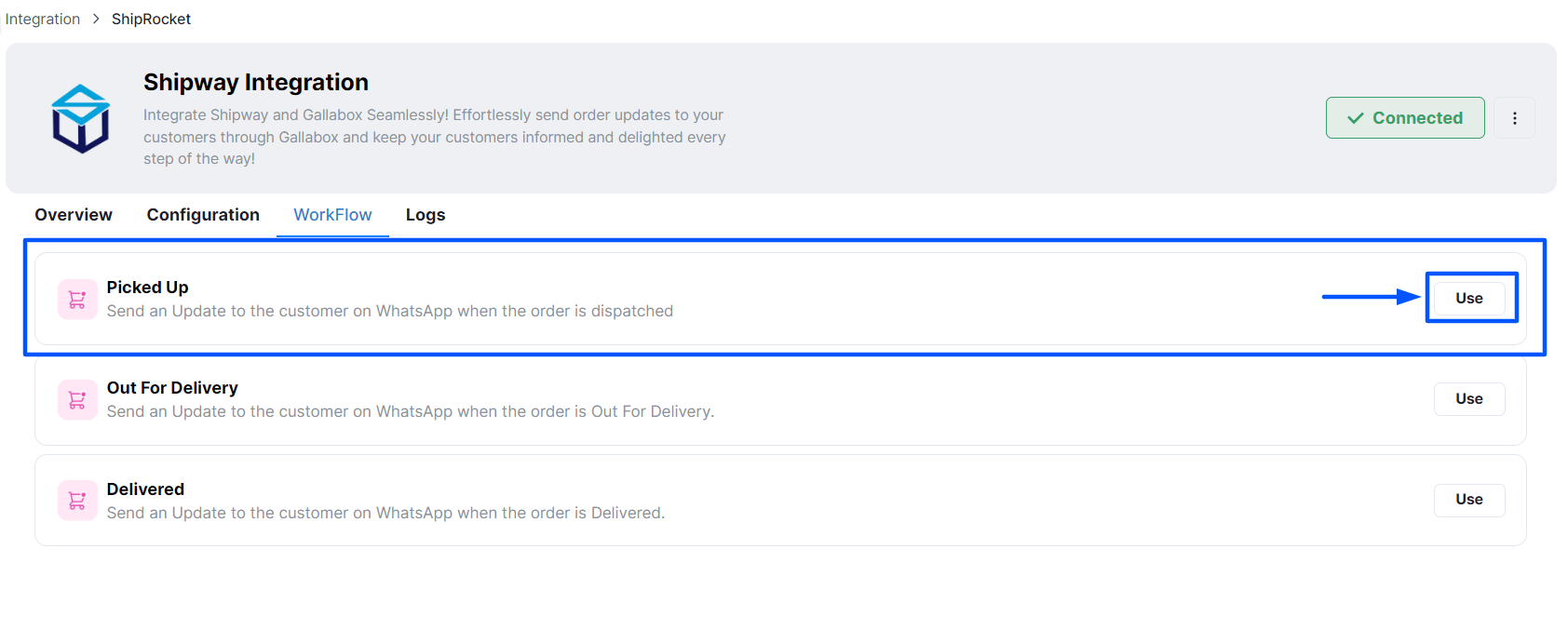
1. Click on Use beside the Order Picked Up Workflow.
### Order Pickup Alerts
1. Click on Use beside the Order Picked Up Workflow.
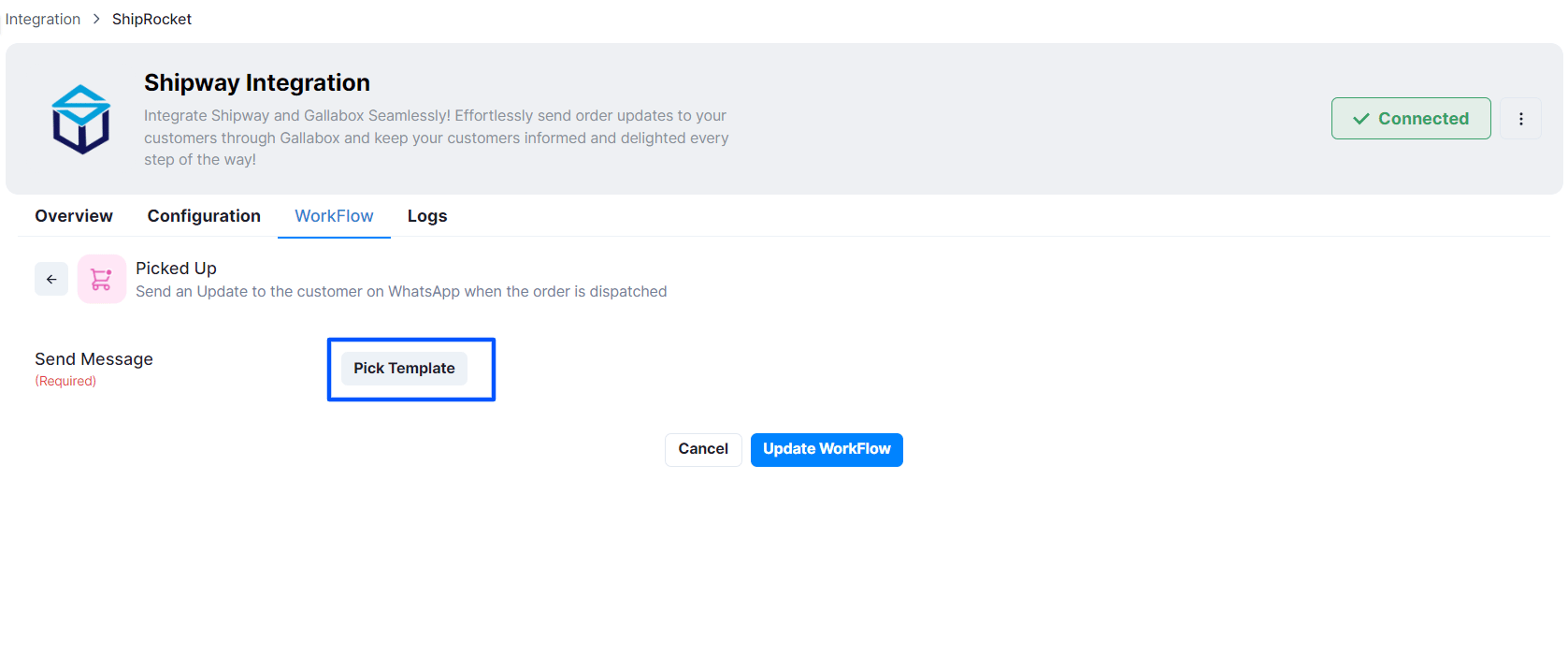
 2. Click on **Pick Template** to open the template library for you to select the template.
 3. To choose the Template you would like to share with the customers when their order has been delivered click **Use** above the chosen template as shown in the picture below.
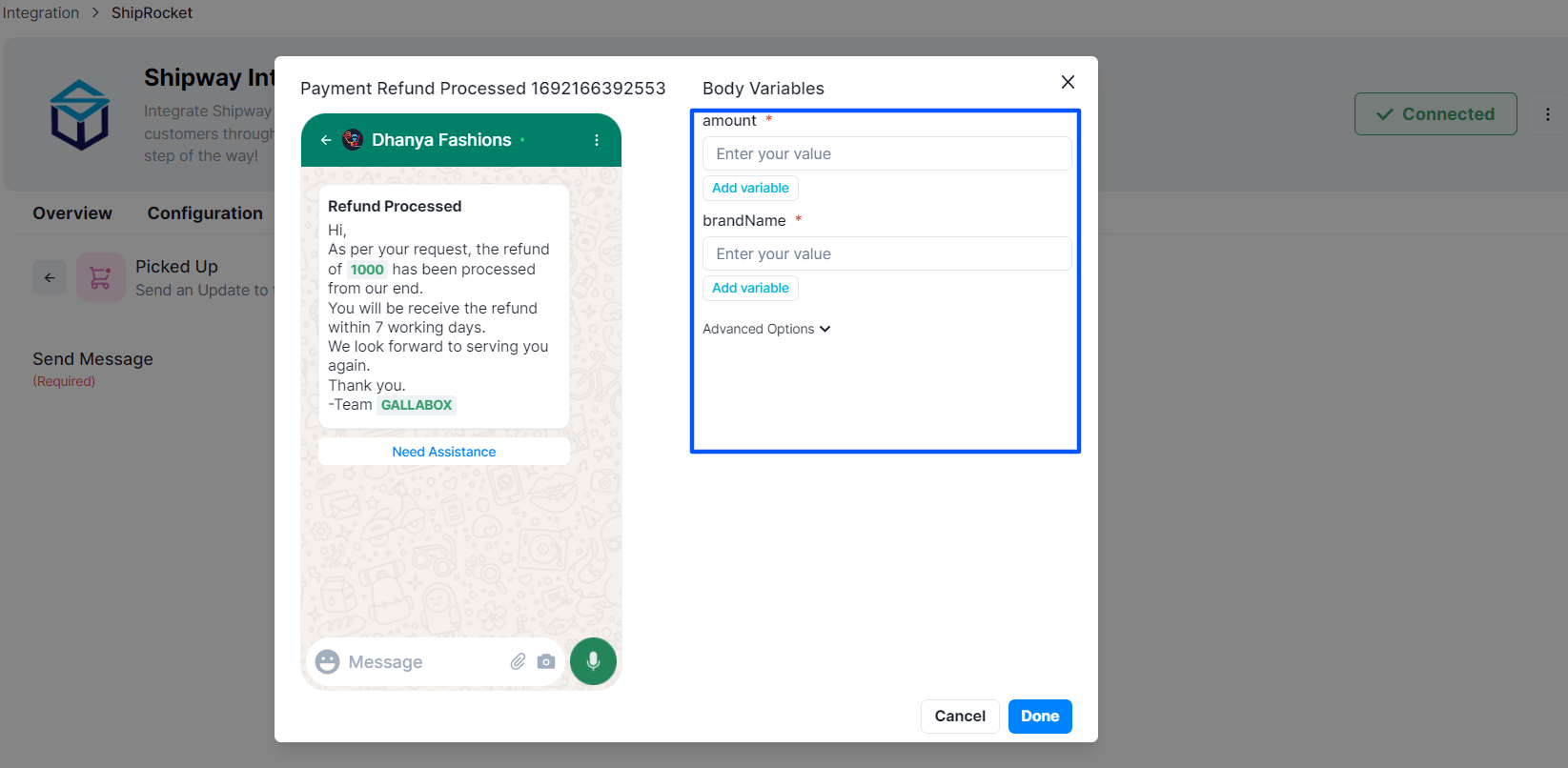
4. Once you have selected the template, the next step is to map the variables in the templates and click on **Done**.
3. To choose the Template you would like to share with the customers when their order has been delivered click **Use** above the chosen template as shown in the picture below.
4. Once you have selected the template, the next step is to map the variables in the templates and click on **Done**.
 5. Click on update workflow as the last step.
 ### Delivery Updates Notifications
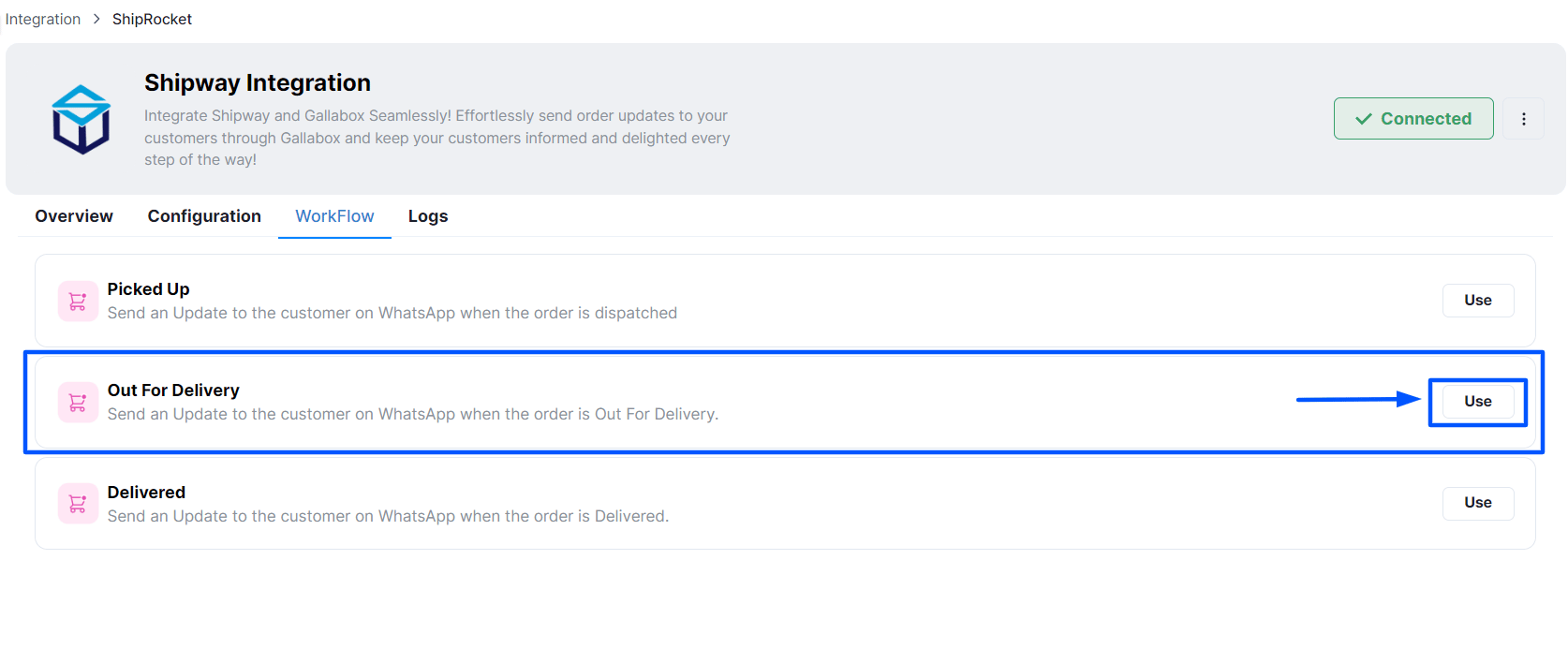
1. Click on Use beside the Out for Delivery Workflow.
### Delivery Updates Notifications
1. Click on Use beside the Out for Delivery Workflow.
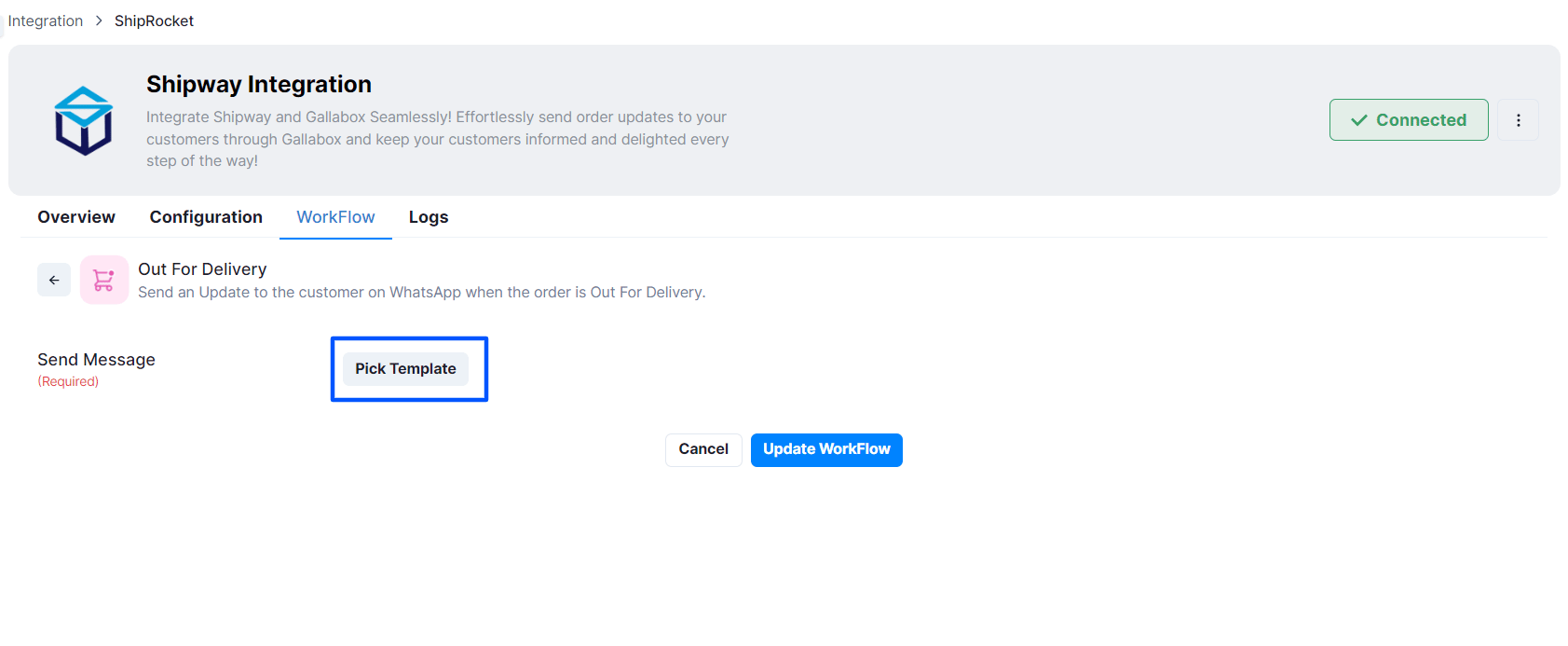
 2. Click on **Pick Template** to open the template library for you to select the template.
 3. To choose the Template you would like to share with the customers when their order has been delivered click **Use** above the chosen template as shown in the picture below.
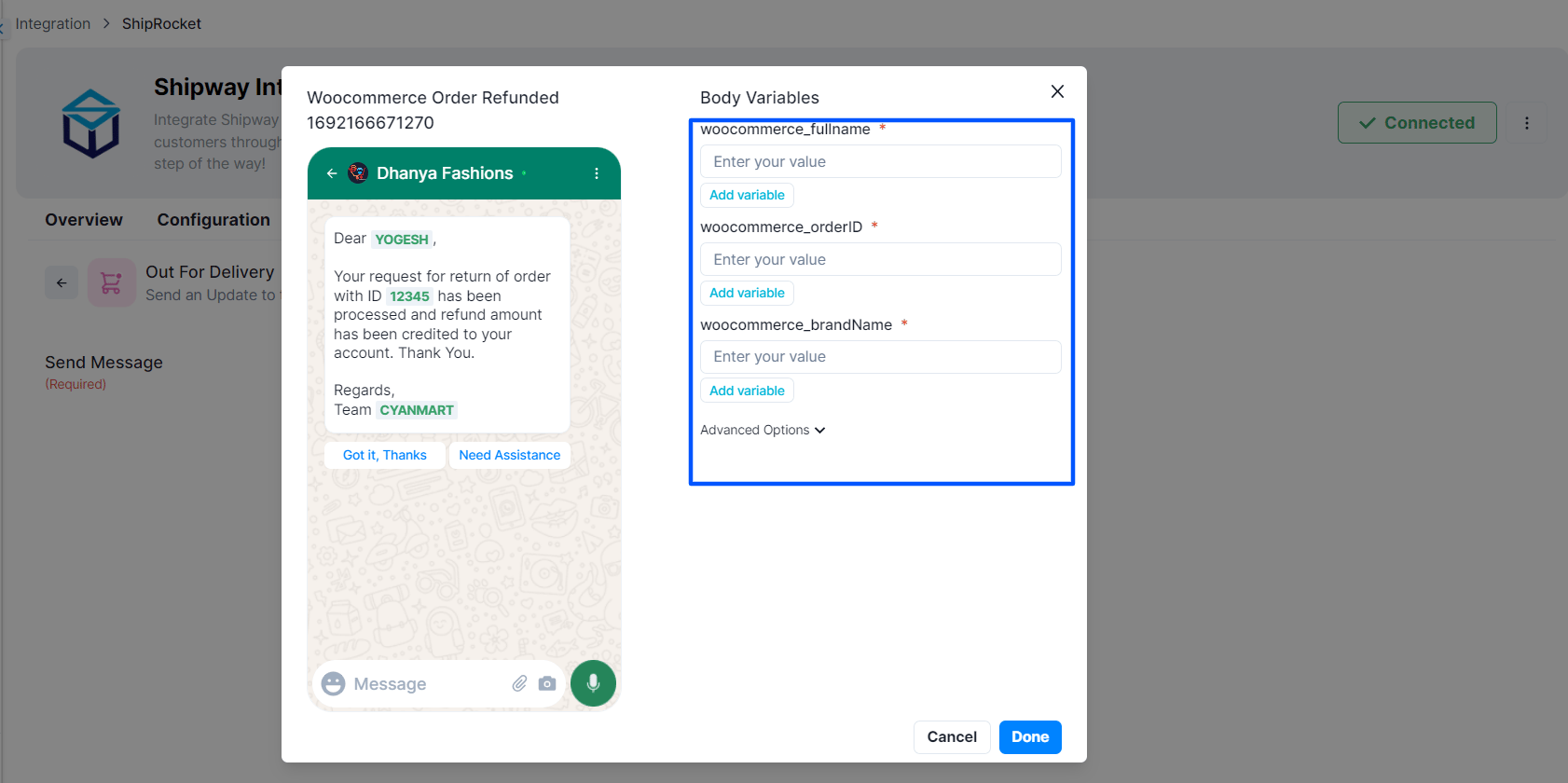
4. Once you have selected the template, the next step is to map the variables in the templates and click on **Done**.
3. To choose the Template you would like to share with the customers when their order has been delivered click **Use** above the chosen template as shown in the picture below.
4. Once you have selected the template, the next step is to map the variables in the templates and click on **Done**.
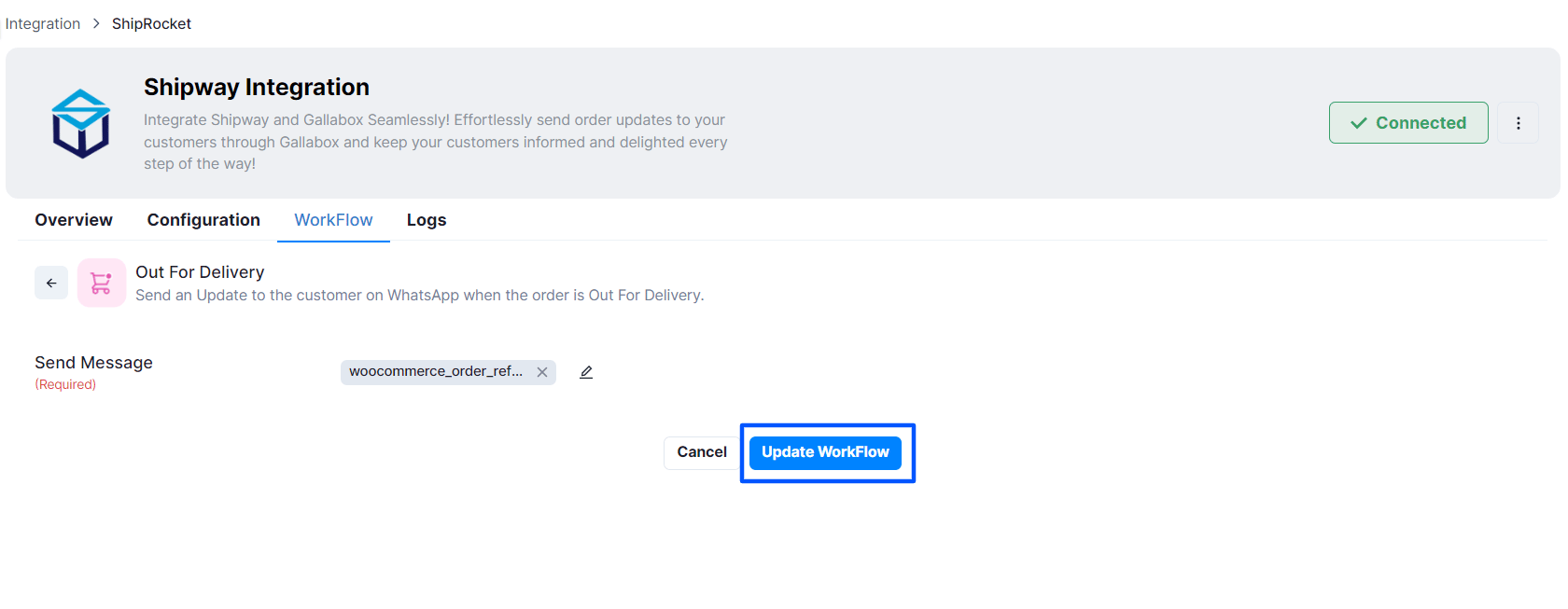
 5. Click on update workflow as the last step.
 ### Workflow Functionality Check
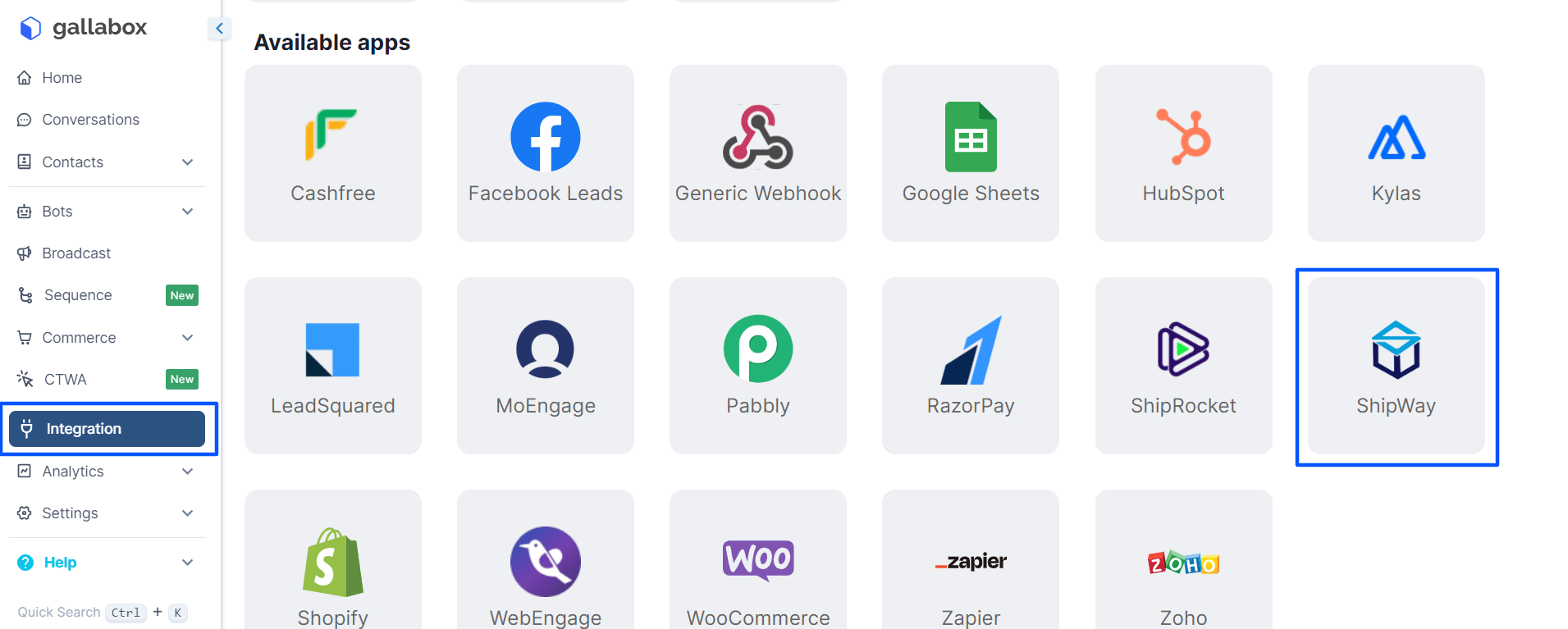
1. From the left navigation go to **Integration** and Click on **Shipway** from the available apps.
### Workflow Functionality Check
1. From the left navigation go to **Integration** and Click on **Shipway** from the available apps.
 2. Click on Logs when the window for Shipway Integration opens up.
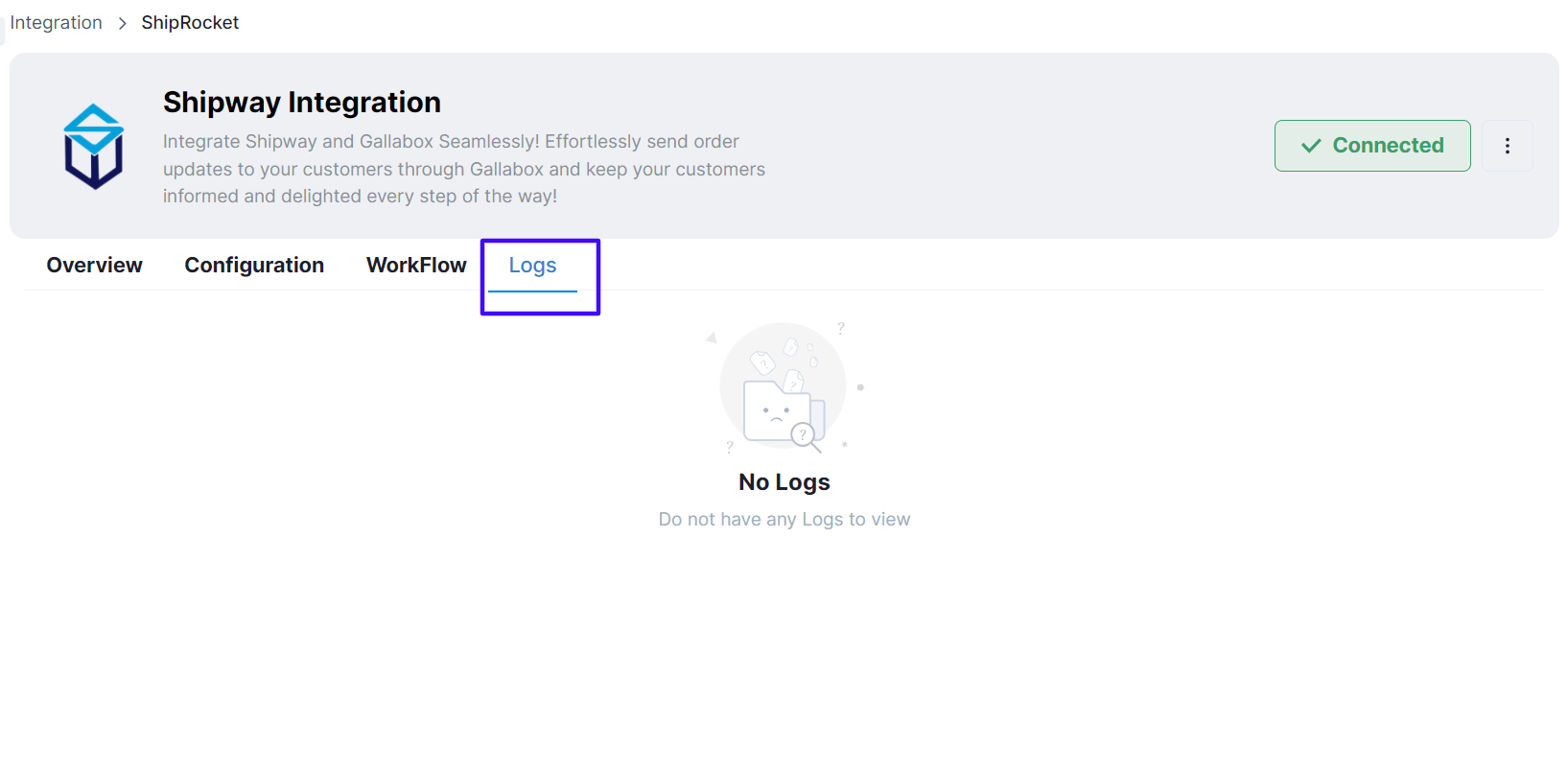 3. If the Logs space is empty, it means you are yet to update the Shipment Status in your Shipway account. Once you start updating the shipment status - Order delivered, Order Picked Up, or Order Out for delivery, the logs will start showing as shown in the picture below.
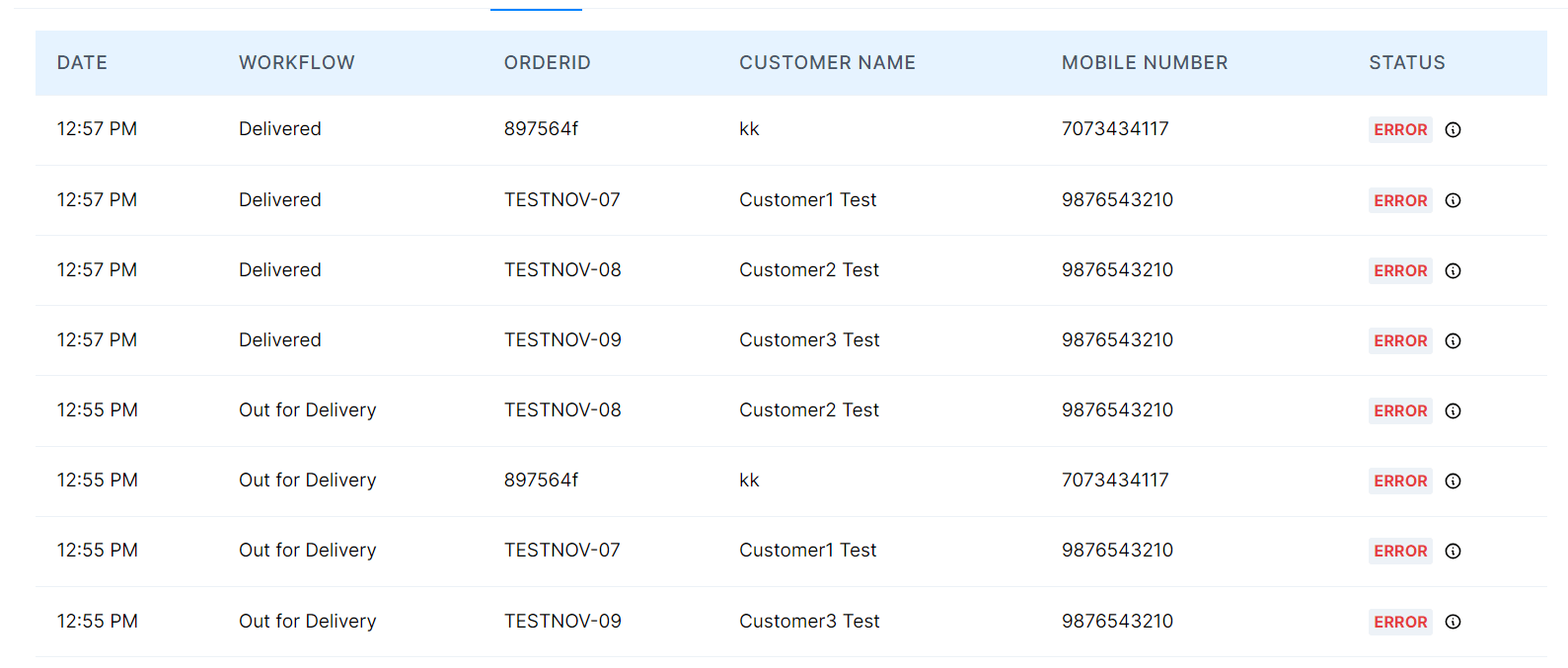 If you are seeing the Error logs in your Shipway Integration, kindly check
* If the template you are sending is approved.
* If the variables are mapped properly.
Click on to know the error you are facing.
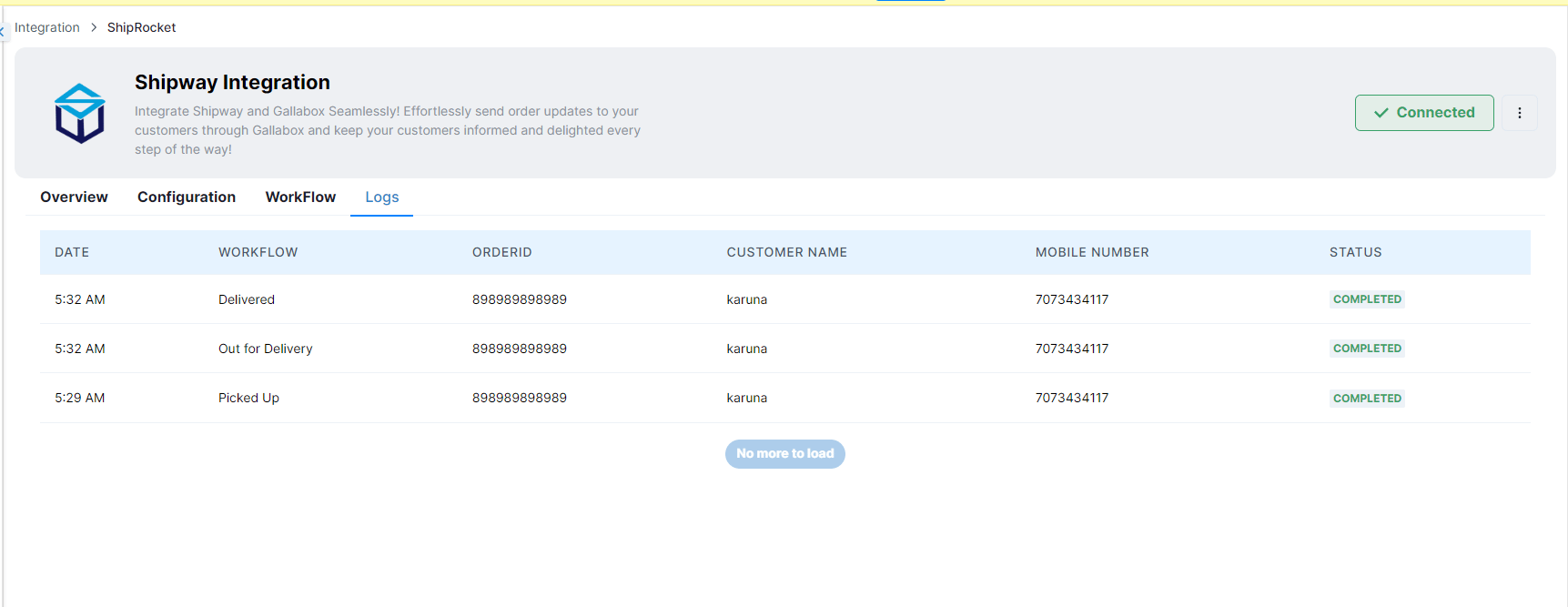
4. If there is no error, the logs will look like the picture below:
If you are seeing the Error logs in your Shipway Integration, kindly check
* If the template you are sending is approved.
* If the variables are mapped properly.
Click on to know the error you are facing.
4. If there is no error, the logs will look like the picture below: