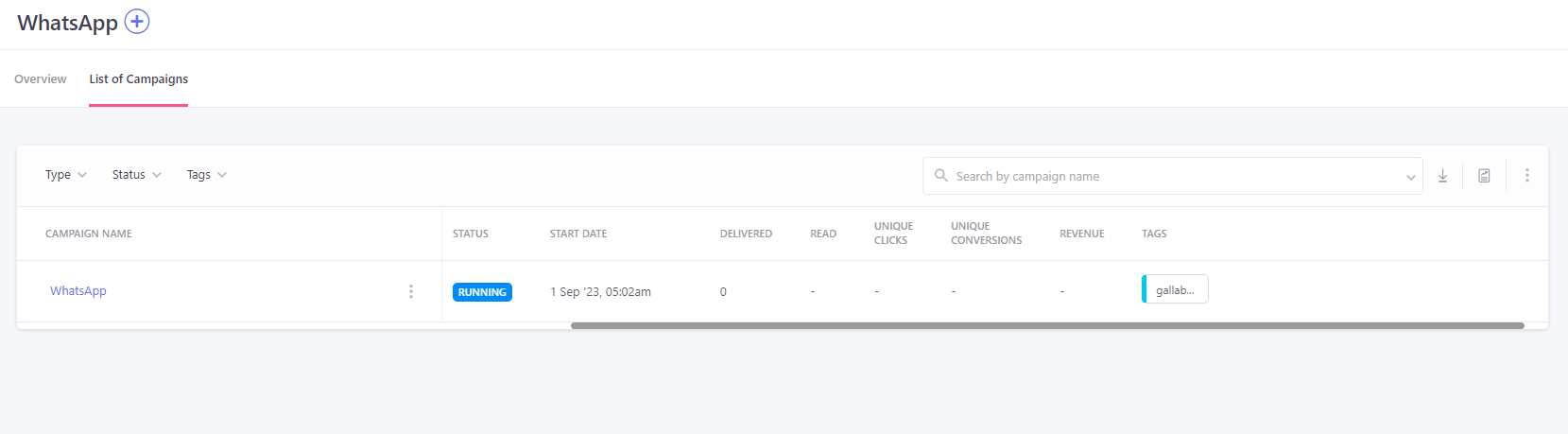
- To create WhatsApp Campaigns in WebEngage, go to Channels under Campaign Manager and select WhatsApp. In the List of Campaigns window, click on Create Campaign. You’ll be prompted to select the type of campaign: One-Time, Recurring, Triggered, or Transactional.
- Choose your desired Campaign type; for this example, we’ll use a One-time Campaign. The screen will then proceed to the next step to add the audience for the Campaign. To add the audience, you have to add the: Campaign Name, Campaign Tags, Campaign Type, and Audience Type: Click on Save & Continue Button at the bottom right of the screen to move forward to adding “When to Send”.
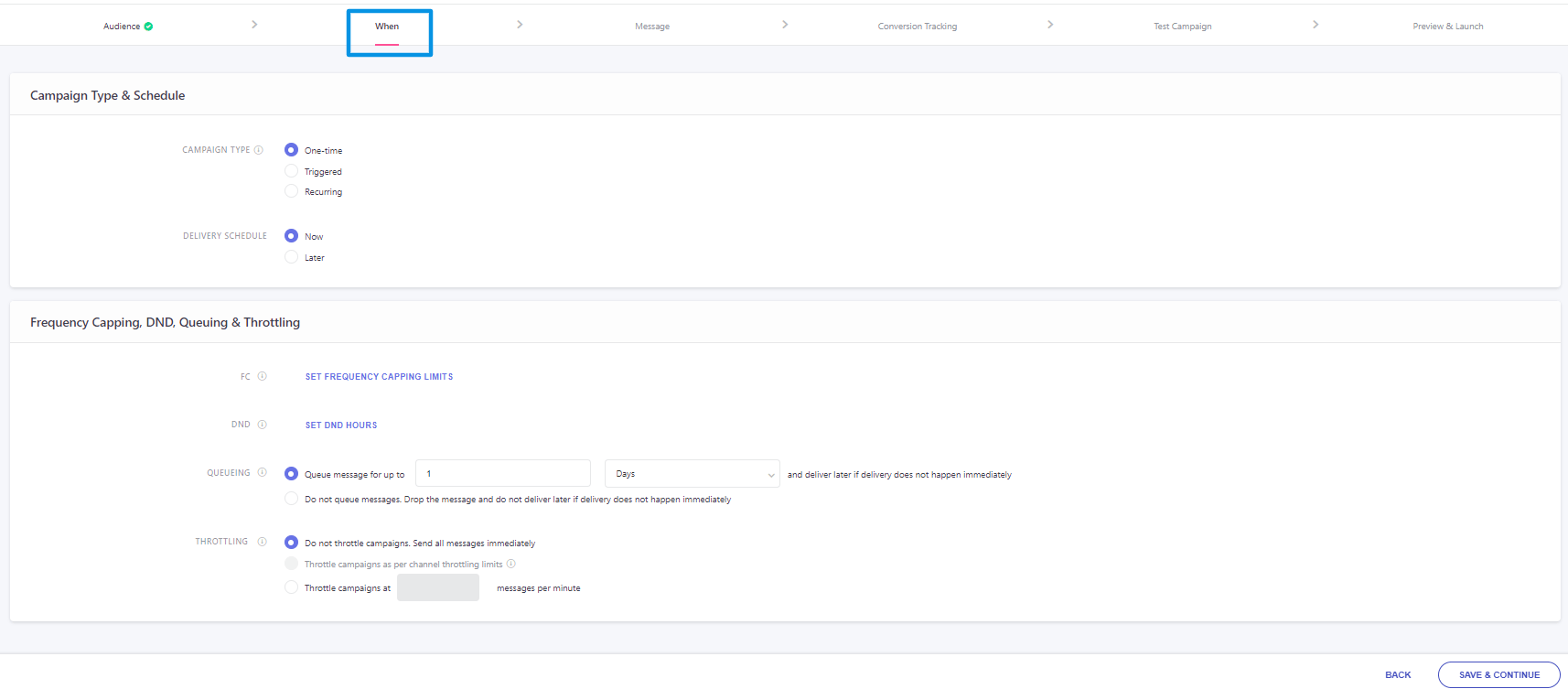
- This Step of Campaign is divided into two sections:
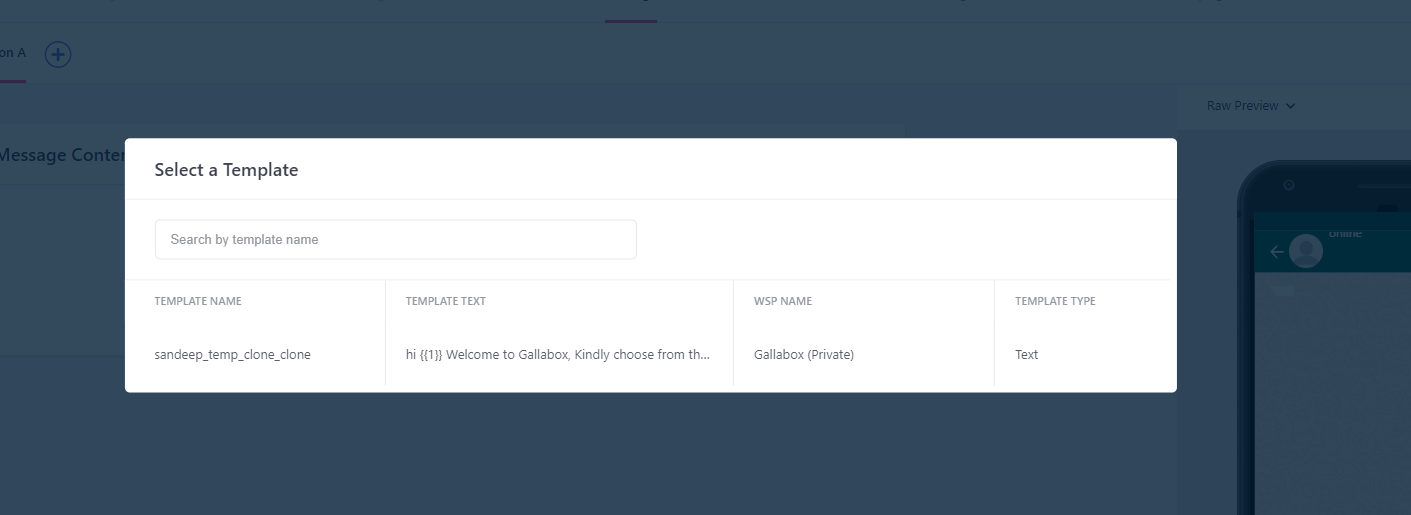
- Once you click, a pop-up will be there and you have to select the WhatsApp Template you want to share among the ones added on your WebEngage Account. After selecting the message template, you have to add the Sample Values for the variables defined. Click on Save & Continue Button at the bottom right of the screen to move forward to turn On “Conversion Tracking”.
If you are using a carousal template, make sure to add KEY-VALUE PAIRS.
The format:For 1st card 1st button: card_0_button_0
_For 1st card 2nd button:_ card_0_button_1
_For 1st card header name:_ card_0_header_name
_For 1st card header URL:_ card_0_header_urlIf you have 3 cards and 2 buttons on each card (Call us, or visit website) then, KEY-VALUE PAIRS would be:card_0_button_0: Call uscard_0_button_1: Visit Websitecard_1_button_0: Call uscard_1_button_1: Visit Websitecard_2_button_0: Call uscard_2_button_1: Visit Website
The format:For 1st card 1st button: card_0_button_0
_For 1st card 2nd button:_ card_0_button_1
_For 1st card header name:_ card_0_header_name
_For 1st card header URL:_ card_0_header_urlIf you have 3 cards and 2 buttons on each card (Call us, or visit website) then, KEY-VALUE PAIRS would be:card_0_button_0: Call uscard_0_button_1: Visit Websitecard_1_button_0: Call uscard_1_button_1: Visit Websitecard_2_button_0: Call uscard_2_button_1: Visit Website
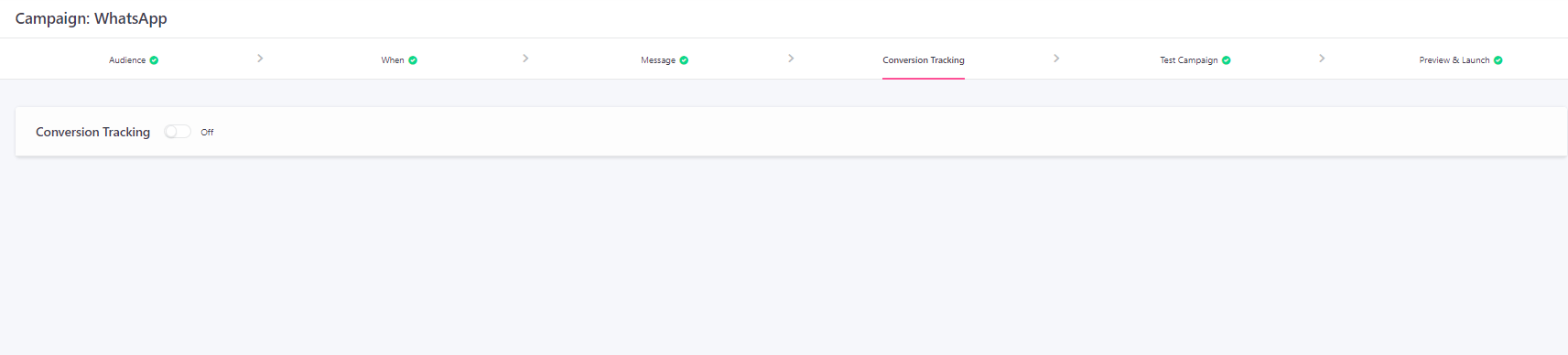
- This part of campaign creation allows you to measure the effectiveness of your campaign by:
- Tracking conversions for a specific goal.
- Comparing performance against a control group.
- Testing multiple variations of the message to identify a winning version.
- See how your WhatsApp message will appear to your customers by testing it with internal team members for maximum impact!
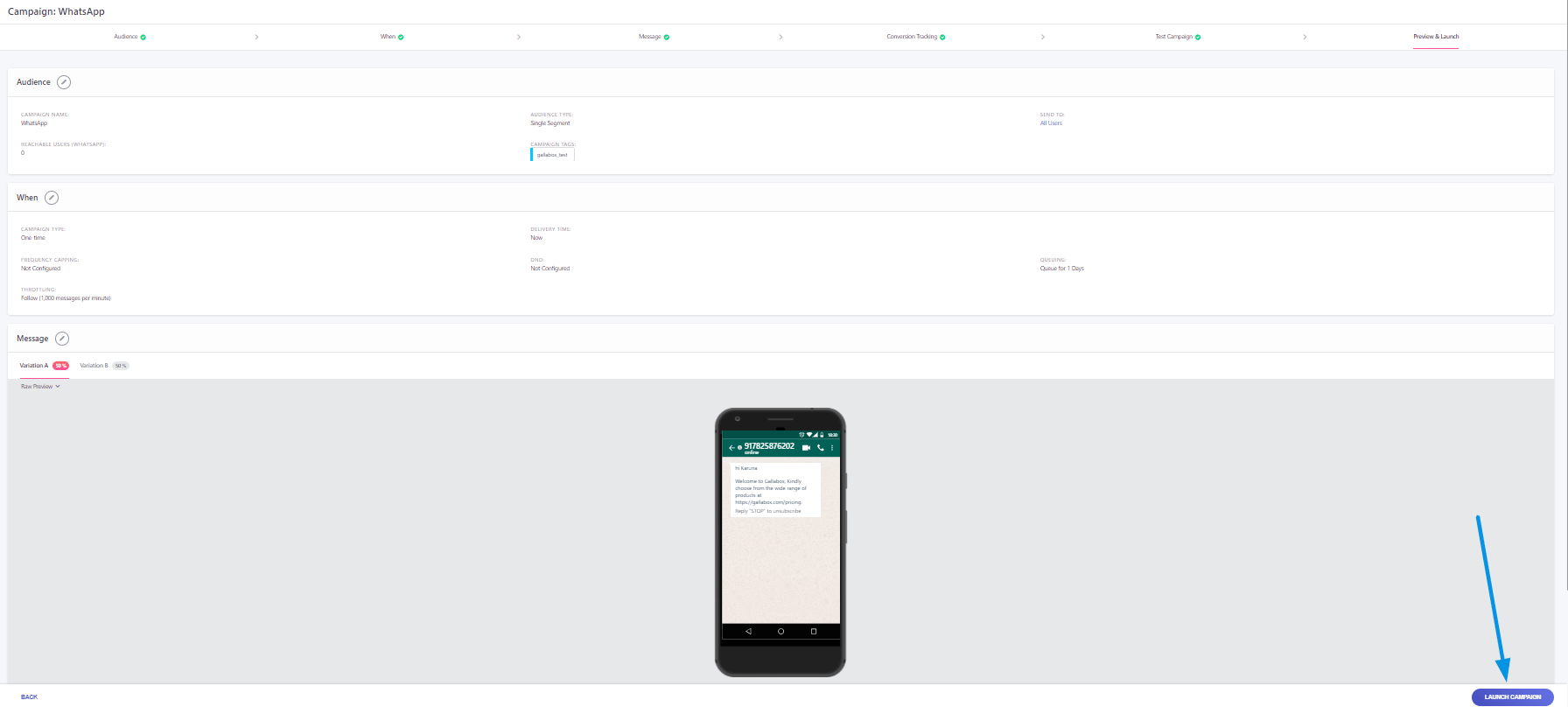
- Once you are satisfied with the test results, it’s time to send the message to your users! But before that, we recommend that you conduct a quick preview of the campaign’s message and settings to ensure that it’s in line with your end goal.
- Once you Launch the Campaign, you can see the status under the List of Campaigns as shown in the below picture.